Rime Editor getting started
Rime Editor is coming soon. This guide previews the intended desktop workflow; the supported way to run Rime today is the CLI.
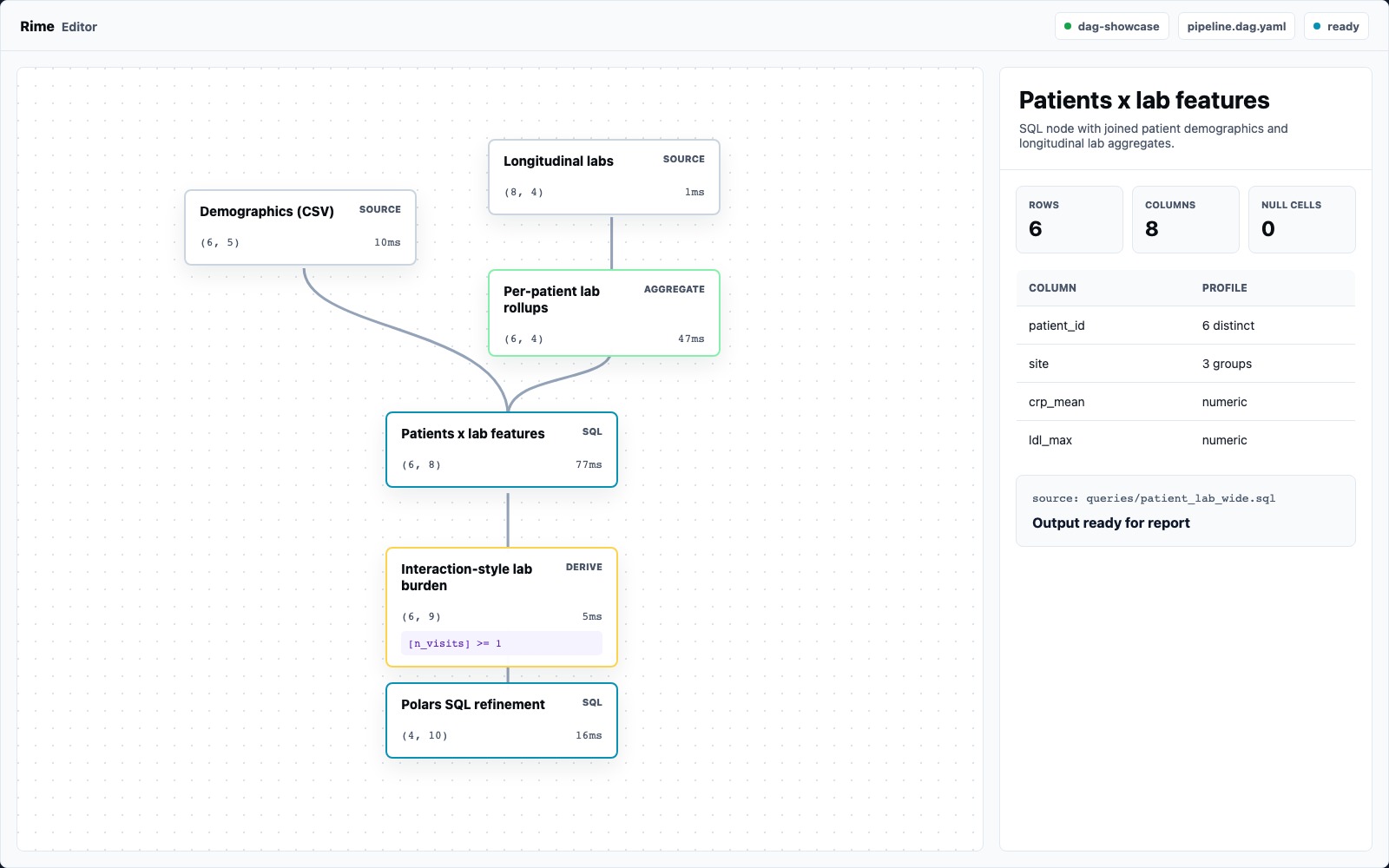
Rime Editor is the visual workbench for the same pipeline.dag.yaml the CLI runs. The app is not a separate project format: it opens a Rime folder, renders the DAG, lets you inspect every node output, and keeps the YAML/spec close enough that you can always drop back to files.
The First Five Minutes
Section titled “The First Five Minutes”- Open a Rime project folder.
- Run the DAG or let the editor use the latest cached outputs.
- Click a source or transform node.
- Read the selected node panel: shape, cached/run state, table preview, column profiles, and source/config.
- Open the report preview and use
View in browserwhen you want the generated HTML artifact.
The fastest demo project is examples/dag-showcase. It has CSV and Parquet sources, expression nodes, SQL, aggregate rollups, statistical terminals, and a report.
What You Are Looking At
Section titled “What You Are Looking At”The canvas is the pipeline:
- source nodes at the top bring files into the DAG
- core transform nodes shape the tables
- SQL/script nodes show named input edges
- statistical nodes produce object outputs for reports
- selected nodes open a right-side inspector
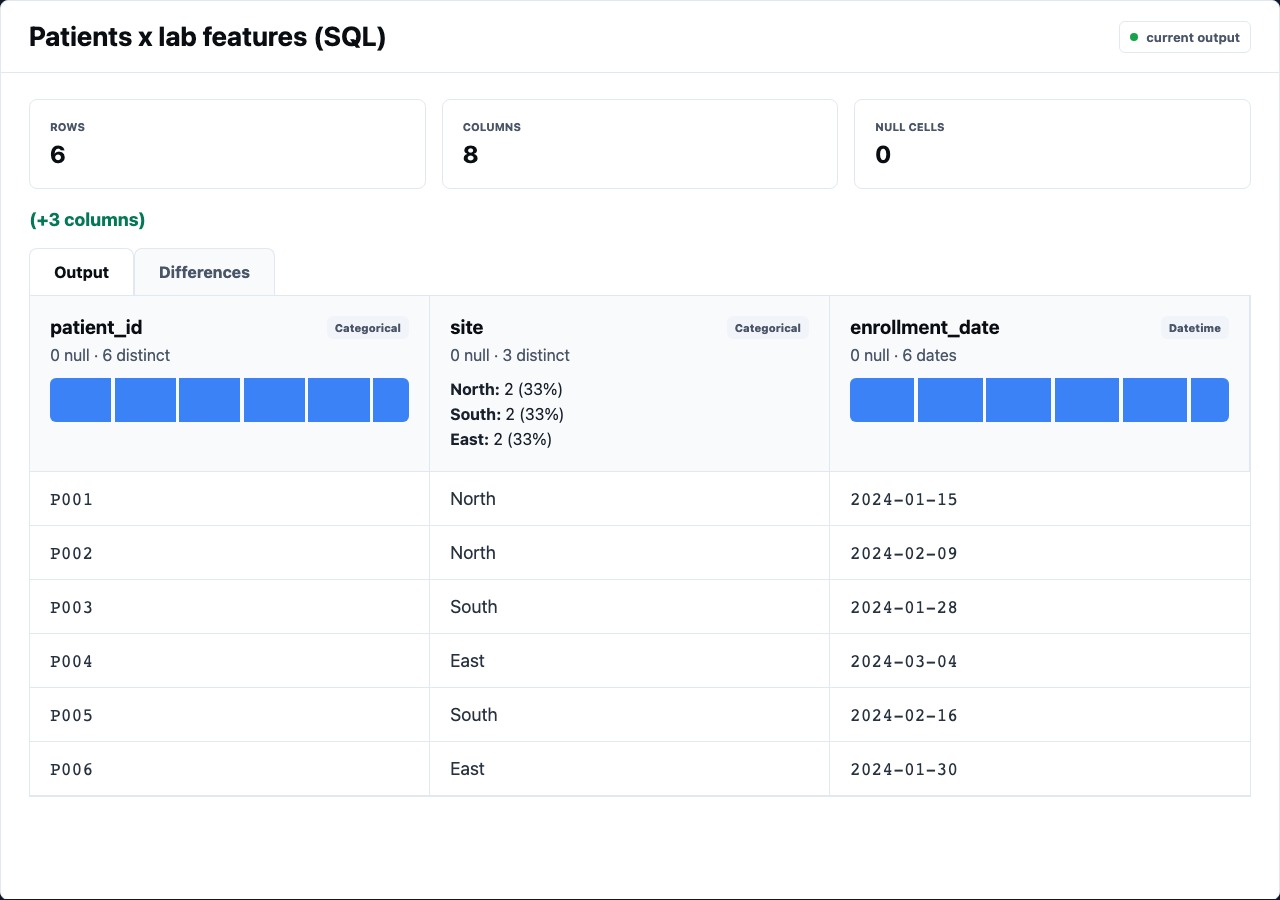
The inspector is where the editor earns its keep. It should answer:
- Did this node run, cache, fail, or skip?
- What shape did it output?
- Which columns changed?
- Are nulls, high-cardinality columns, or warnings worth investigating?
- What expression, YAML, SQL, or script produced this output?
Read The Spec Without Leaving Context
Section titled “Read The Spec Without Leaving Context”The editor keeps the YAML visible because the spec is still the source of truth.
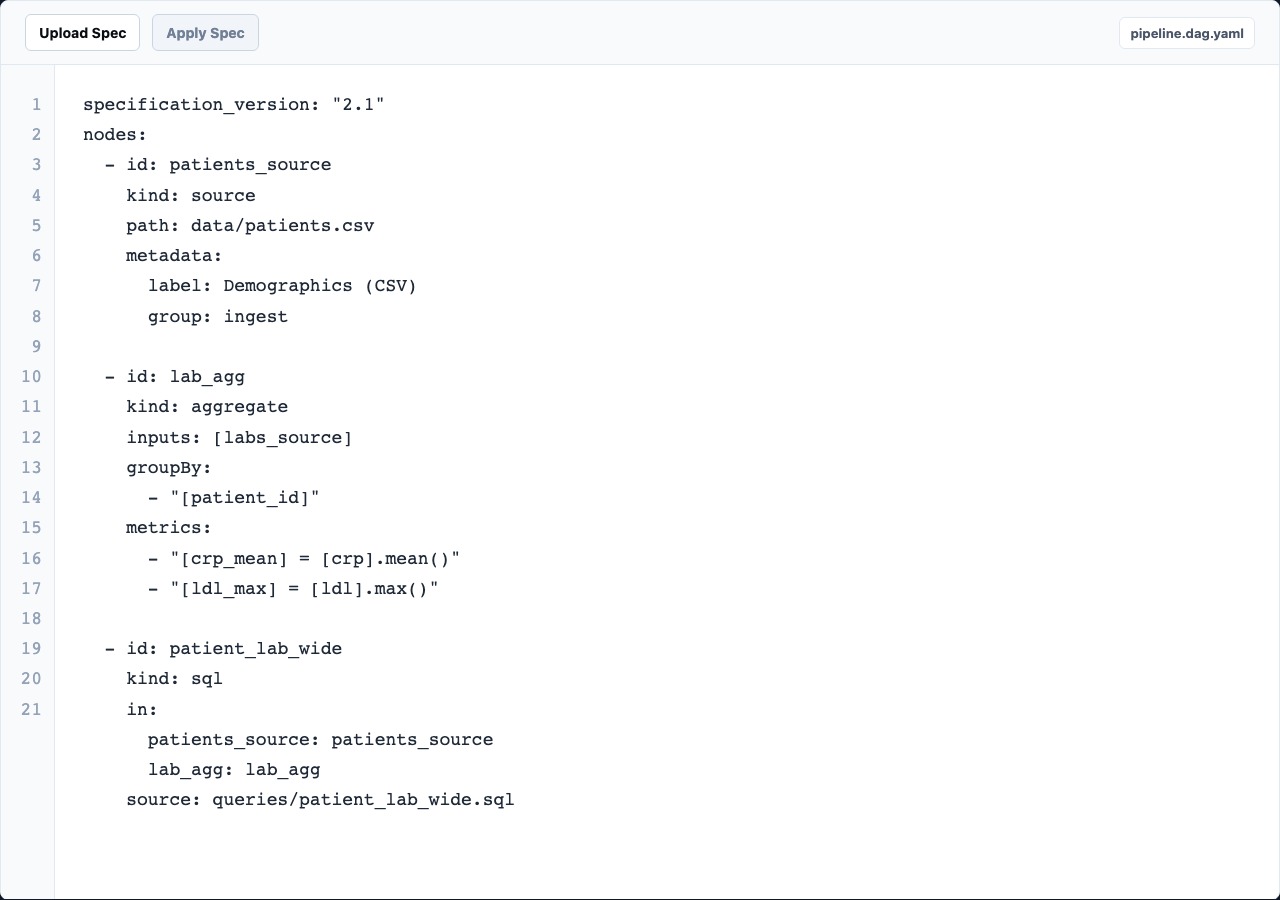
Use the spec view when:
- a visual control does not expose the field you need yet
- you want to inspect named slots like
in:andout: - a review comment needs an exact YAML diff
- you are moving from editor exploration to CLI/CI execution
Preview The Report
Section titled “Preview The Report”Reports are generated from the current run. The editor preview is for review; the browser view is the artifact you can share or archive.
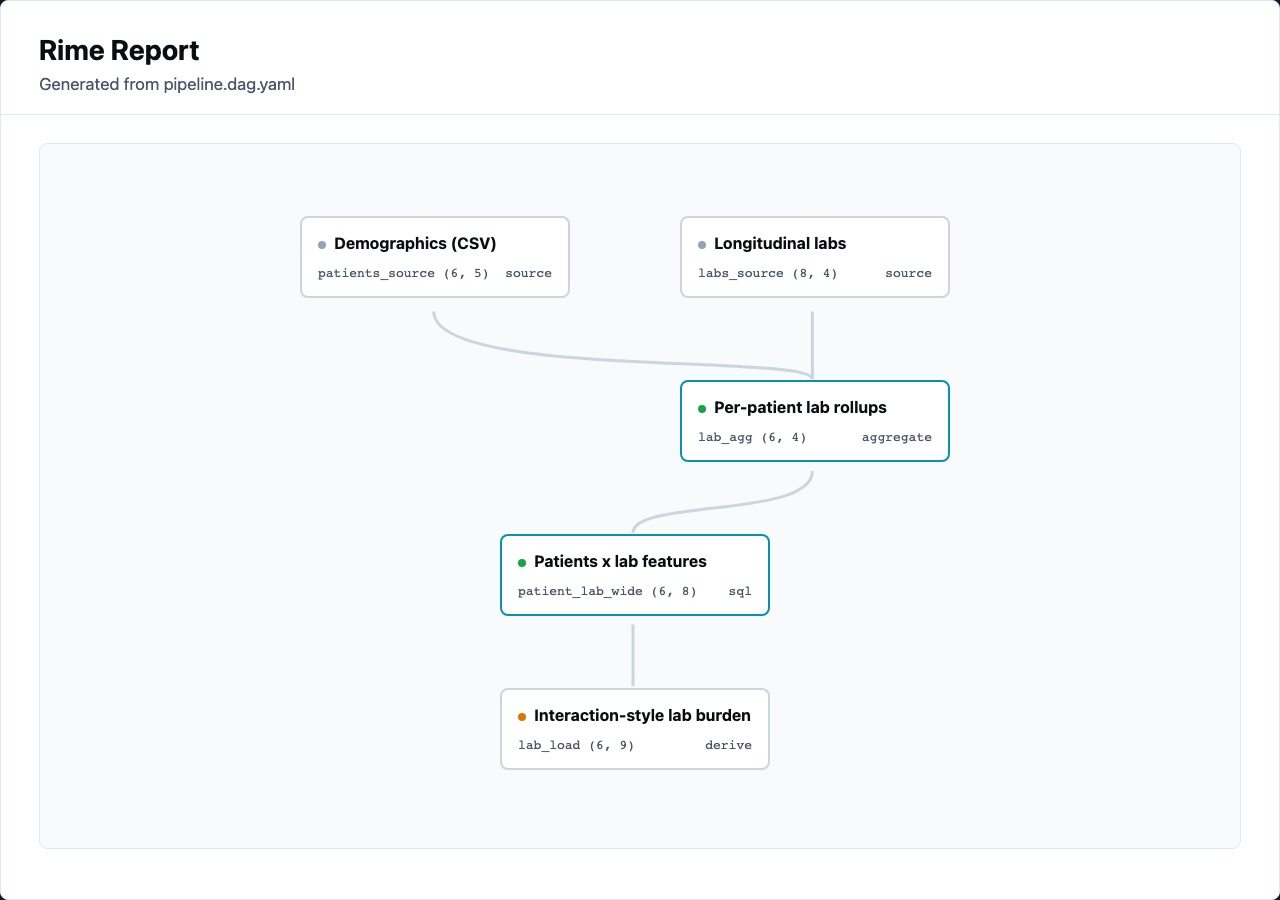
Report preview is especially useful after statistical nodes, because warnings and assumptions sit next to the result instead of being buried in logs.
Where The CLI Still Fits
Section titled “Where The CLI Still Fits”Use the editor to design, inspect, and debug. Use the CLI when you need repeatable automation:
rime validate pipeline.dag.yamlrime run pipeline.dag.yamlrime build pipeline.dag.yamlBoth surfaces consume the same files and produce the same outputs.